Set a precise range
Choose a start and end time for the audio you want to keep.
Keep the moment. Leave the rest behind. Trim songs and recordings on a clear waveform, then export a shorter audio file.
Windows 11 / 10 · 64-bit · Audio stays on your PC
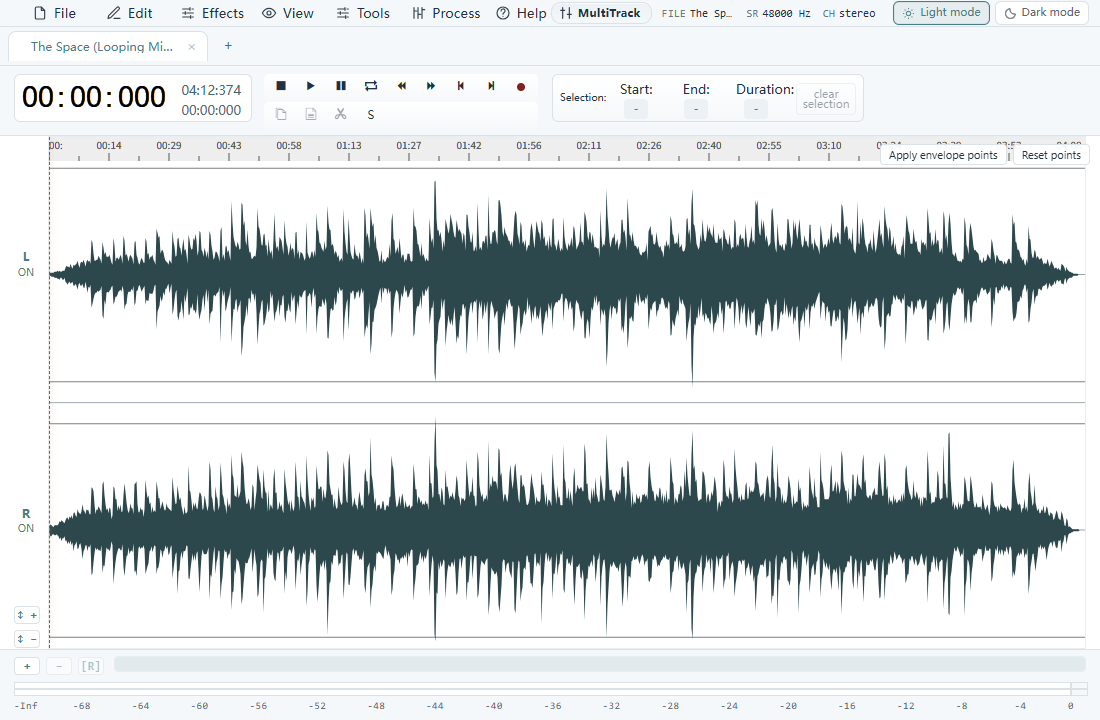
See where to edit. Listen before you commit. Finish with the file you need.
Choose a start and end time for the audio you want to keep.
Zoom into the waveform to place a cut around a word, pause or musical phrase.
Trim to your selection, or cut an unwanted piece from the recording.
Use fade in and fade out to soften an abrupt beginning or ending.
Normalize the audio level before making your finished copy.
Choose a compact MP3 or keep an editing copy in WAV or FLAC.
Load a song or recording from your Windows PC.
Set the range, listen to it and trim away the rest.
Choose the format and a new filename for your finished clip.
Compare desktop and browser audio trimming by file handling, editing controls and repeat use. Find the workflow that suits your recording.
Make your first audio edit with FreeTrim MP3: open a file, test a short selection, trim it and check the exported copy.
Trim an MP3 by choosing the section to keep, previewing the boundaries and exporting a new file. Remove extra audio with FreeTrim MP3 for Windows.
Cut a false start, long pause or extra section from a recording. Learn when to use Cut and when to keep a range with Trim in FreeTrim MP3.
What the app does, what you need, and what is included.
Yes. Every editing feature is available without payment. There is no paid feature upgrade needed to trim or export your audio.
Yes. Select the start and end of the part you want, preview that range, and use Trim to keep it. Export the result with a new name.
Select the unwanted section and use Cut. Listen across the new join before exporting; keep enough breathing room so speech still sounds natural.
The desktop editor works with local audio on your Windows PC. Its trimming workflow does not require uploading your recording to this website.
Export with a different filename or to a different folder to keep your original. Check the saved copy before deleting or replacing any source file.
MP3 is useful for everyday sharing. WAV or FLAC is a good choice when you plan to edit the clip again. The export dialog offers the available formats and settings.
You can make the audio clip here. Choose a format your phone accepts, then use the phone’s own transfer and ringtone settings; those steps vary by device.

Open your recording and get straight to the part worth keeping.